Using the Media Library
How to upload
Media can be uploaded to the Media Library in the admin panel for use with individual components. A file can be dragged directly into the Media Library from a folder in your computer.
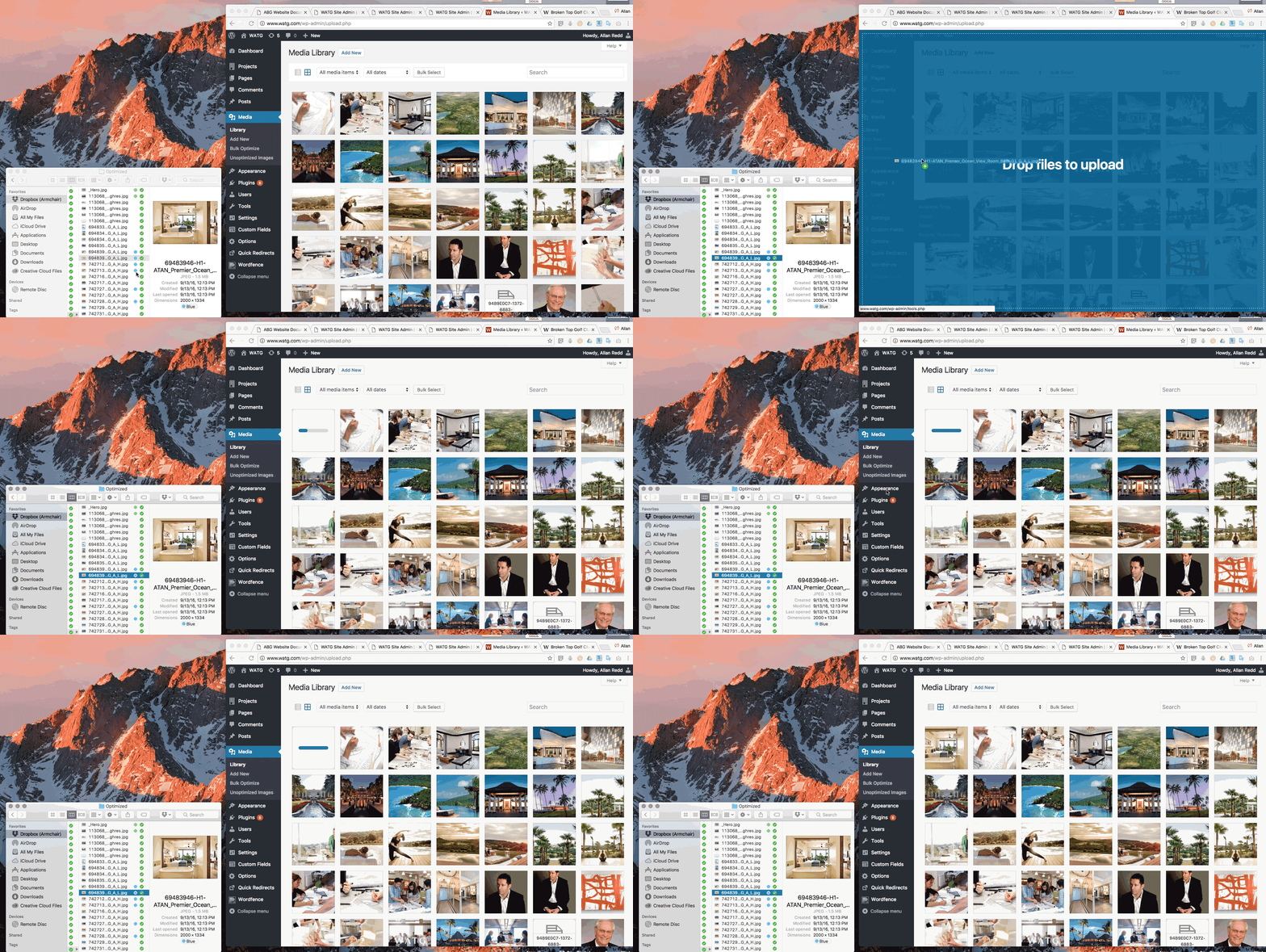
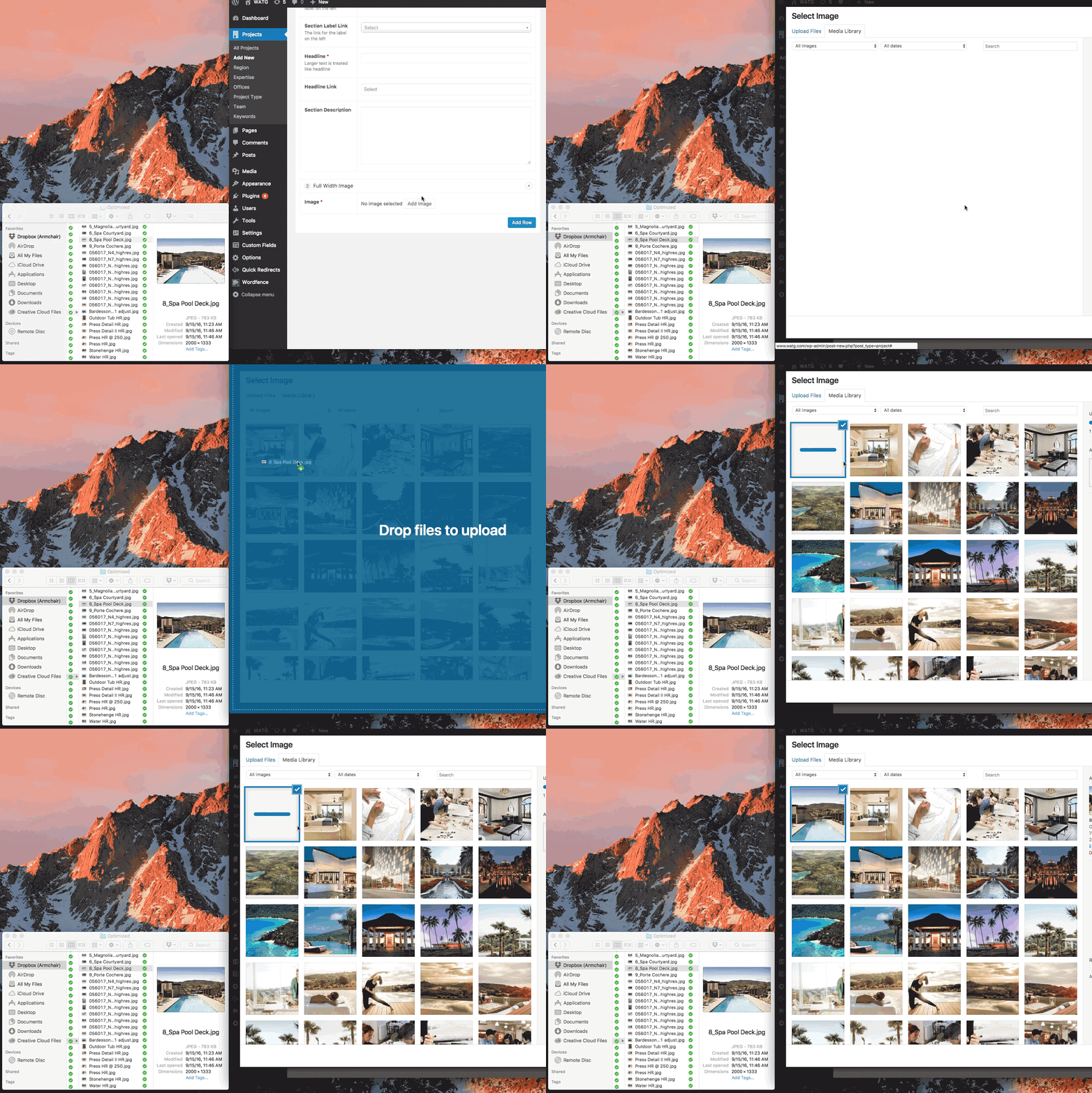
A file can be added to the Media Library for direct use in a component by clicking the Add Image button. Doing so will open the Media Library. Different sized thumbnails are generated for image files in the Media Library and can now be shared for use in different custom components.
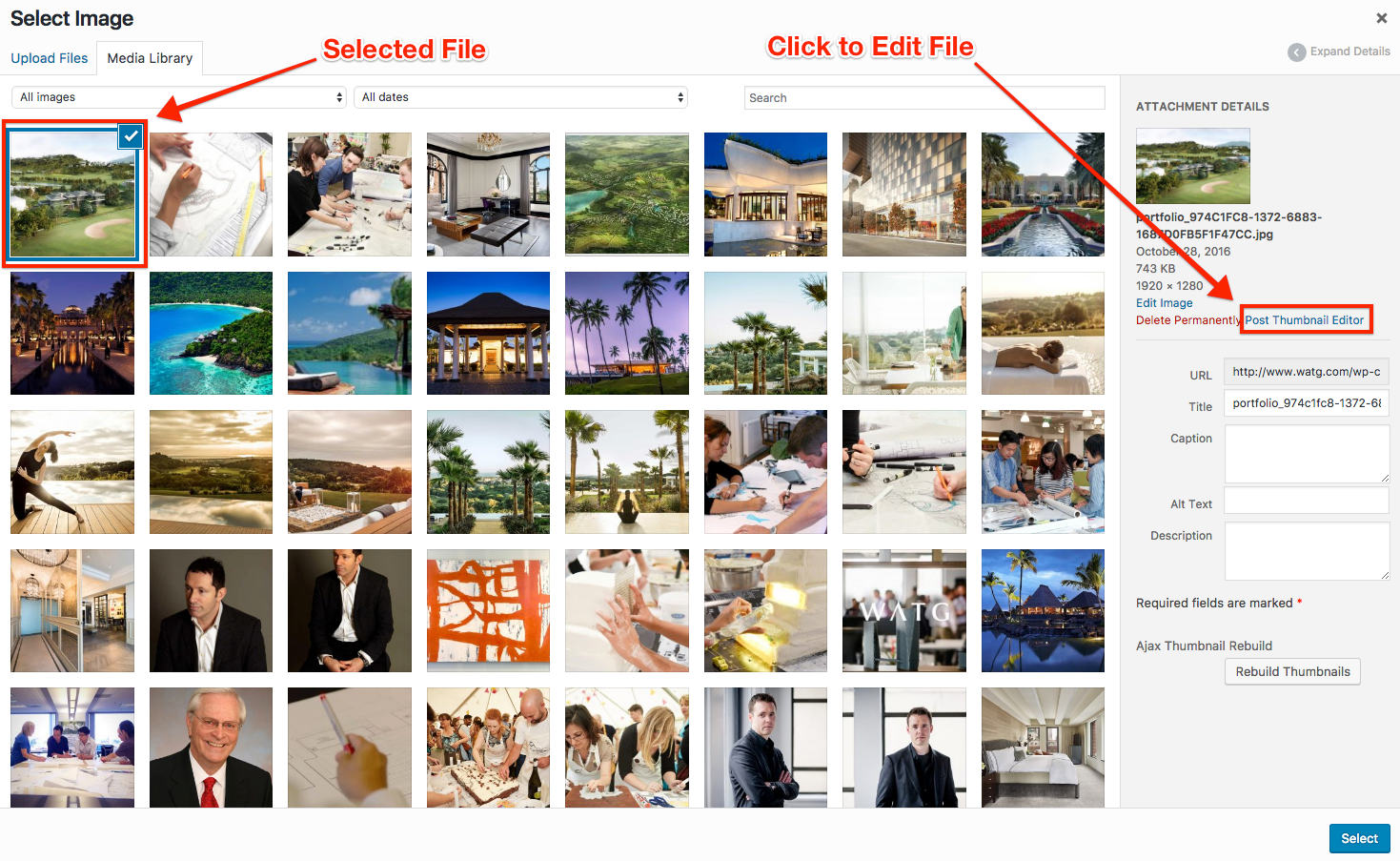
Once uploaded an image can be cropped using the Post Thumbnail Editor.
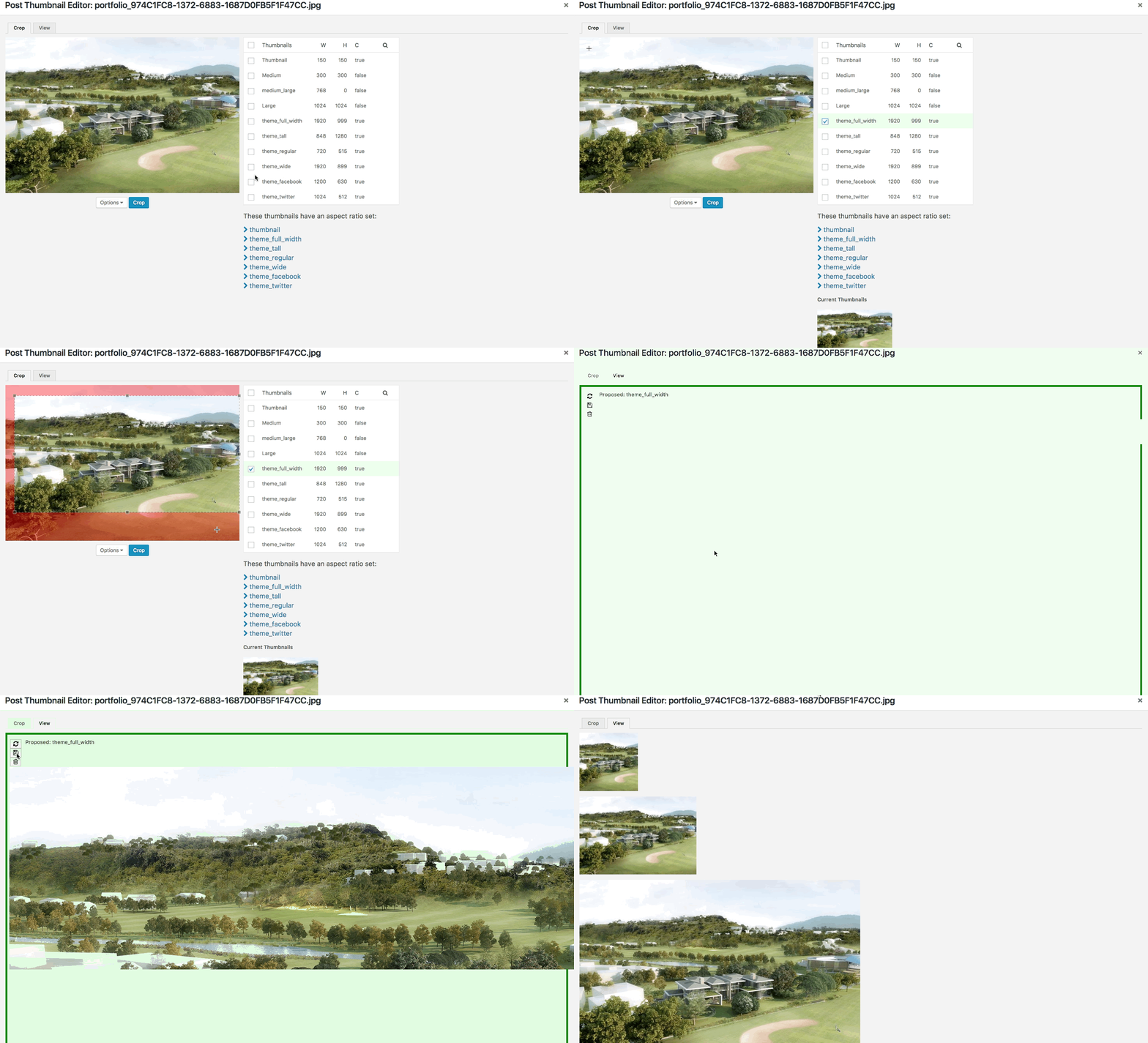
To crop the selected image select the theme for the type of custom component being used, crop and save the image. It will then appear as the newly cropped image within the component once published.
Uploading and linking to a PDF
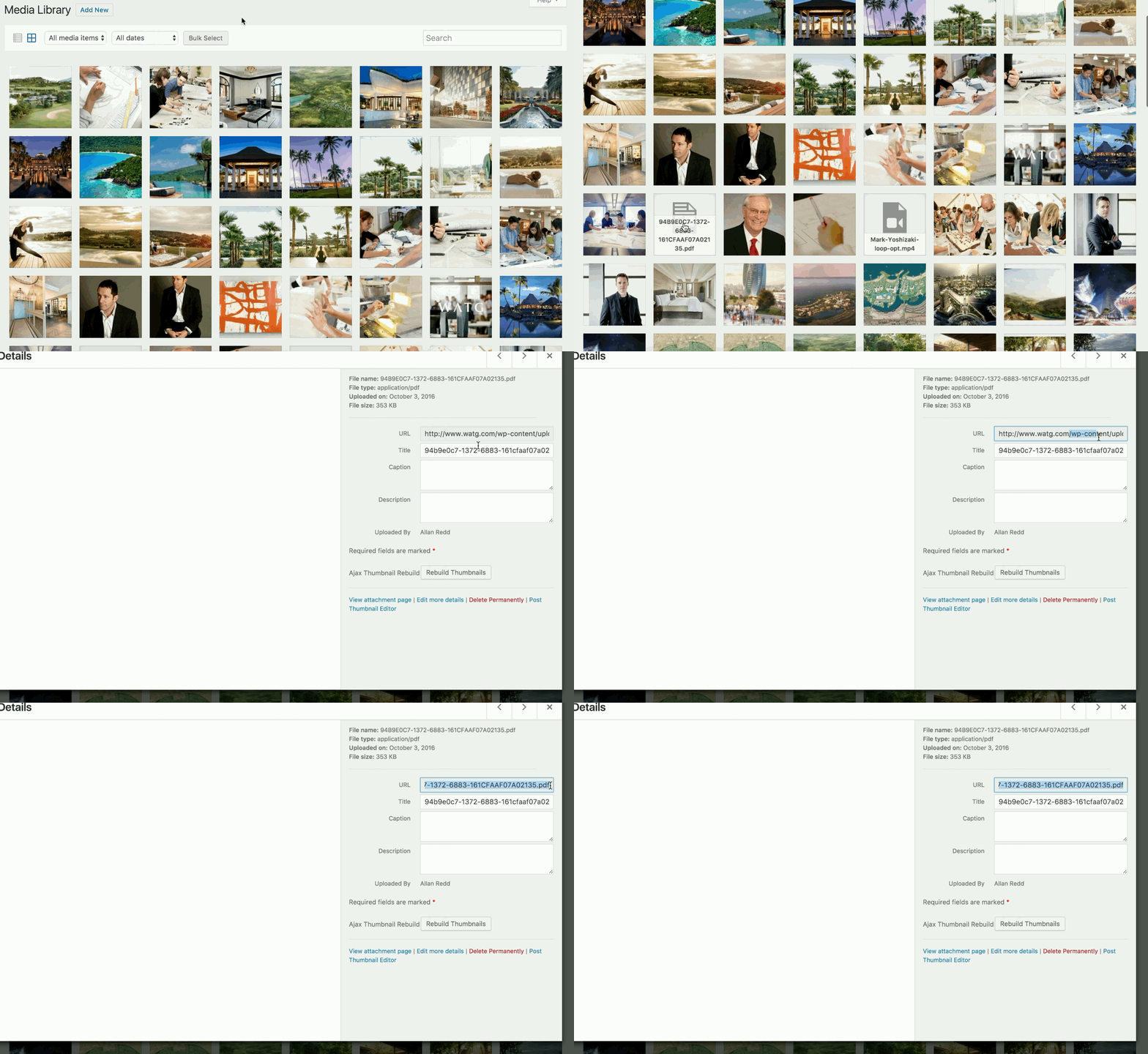
A .pdf file can be uploaded to the Media Library in the same way as an image file. Simply drag the file into the Media Library. Once it has uploaded select the file, highlight the portion of the url after watg.com, copy and past into a hyperlink using the rich-text editor in any custom component that allows for text entry.
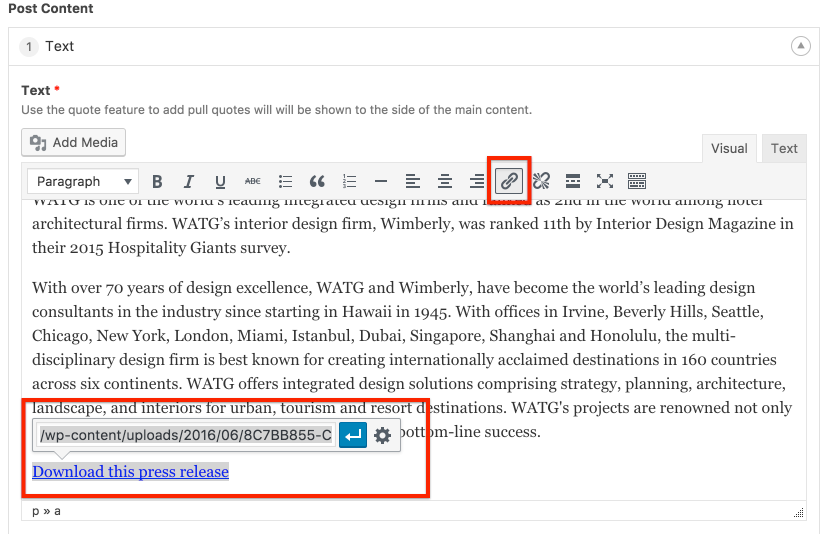
Once published a user can then click on the linked text to load the file in a separate tab in their browser, which they can then print or download.
File Restrictions
Uploaded images should be saved in RGB color mode. You will see the best results if you use the sRGB color profile and the .jpg or .png format. Animated gifs will not display unless they are displayed at 100% full size.
At the time this guide was created the maximum file size for upload was 2MB. If a larger sized file needs to be uploaded please contact your site administrator.